Showing posts with label Qt Tutorial 1. Show all posts

Sunday, January 22, 2012

Qt Tutorial #1 with PyQt4 and Python 3

This is the first of a series of posts based on the TrollTech Qt Tutorial #1.  The posts will contain code from the original tutorial re-written in Python 3 using PyQt4.

It's an old tutorial, I suspect there are now better ways to handle the graphics (with QGraphicScene, QGraphicsView, QGraphicsItem, etc) but useful for getting a handle on layouts, signals, slots, and customizing event handlers.

Here's the first, Hello World.


#!/usr/bin/env python3
# -*- coding: utf-8 -*-

'''
    PyQt4 conversion of Qt Tutorial 1
    
last modified: 2012-01-19 jg
ref: http://doc.trolltech.com/3.3/tutorial1-01.html
'''

import sys
from PyQt4.QtGui import (QApplication, QPushButton)

def main():
    app = QApplication(sys.argv)
    hello = QPushButton("Hello")
    hello.resize(100, 30)

    #app.setMainWidget(hello)    # n/a in  PyQt
    hello.show()
    sys.exit(app.exec_())

if __name__ == '__main__':
    main()

Qt Tutorial #1-2 Calling it Quits

This is from Qt Tutorial #1 Calling it quits


#!/usr/bin/env python3
# -*- coding: utf-8 -*-

'''
    PyQt4 conversion of Qt Tutorial 2 
    
last modified: 2012-01-19 jg
ref: http://doc.trolltech.com/3.3/tutorial1-02.html
'''

import sys
from PyQt4.QtGui import (QApplication, QPushButton, QFont)

def main():
    app = QApplication(sys.argv)    # required

    quitBtn = QPushButton('Quit')
    quitBtn.resize(75, 35)
    quitBtn.setFont(QFont("Times", 18, QFont.Bold))

    # Register event handling ('signal/slot' mechanism)
    # when button is clicked, it sends an event message (signal)
    # to a 'method' (slot) for handling
    # in this case, the application 'quit()' method
    quitBtn.clicked.connect(app.quit)  # new style

    quitBtn.show()

    sys.exit(app.exec_())   # start main event loop, exit when app closed

if __name__ == '__main__':
    main()


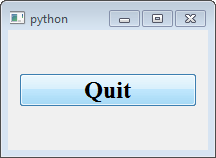
Qt Tutorial #1-3 Family Values

This is from Qt Tutorial #1 - Family Values


#!/usr/bin/env python3
# -*- coding: utf-8 -*-

'''
    PyQt4 conversion of Qt Tutorial 3
    
    The original example uses a QVBox; a layout class with resize() and show() methods.
    In PyQt4 this is implemented as QVBoxLayout and there are no resize() or show() methods.
    To get same effect:
            create a QWidget
            set its layout to a QVBoxLayout
            add the QPushButton to the QVBoxLayout
            show the widget
    
last modified: 2012-01-19 jg
ref: http://doc.trolltech.com/3.3/tutorial1-03.html
'''

import sys
from PyQt4.QtGui import (QApplication, QWidget, QPushButton, QFont, QVBoxLayout)

def main():
    app = QApplication(sys.argv)    # required

    w = QWidget()
    w.resize(200, 120)

    vbox = QVBoxLayout()    # no resize() or show() methods
    w.setLayout(vbox)

    quitBtn = QPushButton('Quit')
    quitBtn.resize(75, 35)
    quitBtn.setFont(QFont("Times", 18, QFont.Bold))
    vbox.addWidget(quitBtn)

    quitBtn.clicked.connect(app.quit)  # register event handling

    w.show()
    sys.exit(app.exec_())   # start main event loop, exit when app closed

if __name__ == '__main__':
    main()
Qt Tutorial #1-4 Let there be widgets

This is from Qt Tutorial #1-4 Let there be widgets


#!/usr/bin/env python3
# -*- coding: utf-8 -*-

'''
    PyQt4 conversion of Qt Tutorial 4
    Create a custom widget.
    
    The original code uses an init() signature of 
        MyWidget::MyWidget( QWidget *parent, const char *name )
    The 'name' parameter is not part of the PyQt4 QWidget __init__() signature
    If used, as shown here, do not pass it on to the base class.
    
    The parameter is useful for identifying the widget in CSS style sheets
    i.e. QWidget#myWidget{ color: blue; }
    
    Note: QWidget appears to have a default QLayout manager that uses
          absolute positioning based on the window's top-left corner
          For example if you add the following to init()
              btn = QPushButton('Button', self)
              btn1 = QPushButton('Button 1', self)
          both buttons will be added to the top-left (0,0) corner
          with 'btn1' being positioned over 'btn'
          
          Set the geometry on either button to reposition it.
        
last modified: 2012-01-19 jg
ref: 
    http://doc.trolltech.com/3.3/tutorial1-04.html
    http://riverbankcomputing.co.uk/static/Docs/PyQt4/html/qwidget.html
'''

import sys
from PyQt4.QtGui import (QApplication, QWidget, QPushButton, QFont)

class MyWidget(QWidget):    # MyWidget subclasses QWidget
    def __init__(self, parent=None, name=''):
        super(MyWidget, self).__init__(parent)  # initialise base (QWidget) class
        if name:
            self.setObjectName(name)

        self.setMinimumSize(200, 120)
        self.setMaximumSize(200, 120)

        quitBtn = QPushButton('Quit', self)
        quitBtn.setGeometry(62, 40, 75, 30)    # position the button in the window
        quitBtn.setFont(QFont("Times", 18, QFont.Bold))

        # Note: the 'QApplication.instance()' returns the
        # QApplication 'instance object' whose 'quit' method is invoked
        quitBtn.clicked.connect(QApplication.instance().quit)

        # test default layout behaviour
        btn = QPushButton('Button', self)
        btn1 = QPushButton('Button 1', self)
        btn1.setGeometry(50, 10, 50, 30)    # x, y, width, height

def main():
    app = QApplication(sys.argv)    # required

    w = MyWidget(name='myWidget')
    w.setGeometry(100, 100, 200, 120)
    w.show()
    sys.exit(app.exec_())   # start main event loop, exit when app closed


if __name__ == '__main__':
    main()


Qt Tutorial #1-5 Building Blocks

This is from Qt Tutorial #1 Building Blocks

#!/usr/bin/env python3
# -*- coding: utf-8 -*-

'''
    PyQt4 conversion of Qt Tutorial 5
    
    This example shows how to create and connect together several widgets 
    by using signals and slots, resize events are handled automatically.
    
    Behavior
        The LCD number reflects everything you do to the slider, and the widget 
        handles the resizing automatically. 
        Notice that the LCD number widget changes in size when the window is resized 
        (because it can), but the others stay about the same (because otherwise they 
        would look stupid).
    
    Note: The original code subclassed QVBox
          Here, we subclass QWidget and set its layout to QVBoxLayout 
        
last modified: 2012-01-19 jg
ref: 
    http://doc.trolltech.com/3.3/tutorial1-05.html
'''
import sys
from PyQt4.QtGui import (QApplication, QWidget, QPushButton, QFont,
                         QVBoxLayout, QSlider, QLCDNumber)
from PyQt4.QtCore import (Qt)

class MyWidget(QWidget):    # MyWidget subclasses QWidget
    def __init__(self, parent=None, name=''):
        super(MyWidget, self).__init__(parent)  # initialise base (QWidget) class
        if name:
            self.setObjectName(name)

        layout = QVBoxLayout()
        self.setLayout(layout)

        quitBtn = QPushButton('Quit', self)
        quitBtn.setFont(QFont("Times", 18, QFont.Bold))
        layout.addWidget(quitBtn)

        quitBtn.clicked.connect(QApplication.instance().quit)

        lcd = QLCDNumber(2, self);  # two digit number display
        layout.addWidget(lcd)

        slider = QSlider(Qt.Horizontal, self);  # Qt constant
        slider.setRange(0, 99);     # number range
        slider.setValue(0);         # initial value
        layout.addWidget(slider)

        # forward slider value changes to the lcd display method
        slider.valueChanged.connect(lcd.display)

def main():
    app = QApplication(sys.argv)    # required

    w = MyWidget(name='slider')
    w.show()
    sys.exit(app.exec_())   # start main event loop, exit when app closed


if __name__ == '__main__':
    main()

Qt Tutorial #1-6 Building Blocks Galore

This is from Qt Tutorial #1-6 Building Blocks Galore


#!/usr/bin/env python3
# -*- coding: utf-8 -*-

'''
    PyQt4 conversion of Qt Tutorial 6
    
    This example shows how to encapsulate two widgets into a new component 
    and how easy it is to use many widgets. The custom widget (LCDRange) 
    is used as a child widget. 
    
    Behaviour: move a slider to change the related number display.
    
    Note: example uses 'nested' layouts to create the GUI
          
last modified: 2012-01-19 jg
ref: 
    http://doc.trolltech.com/3.3/tutorial1-06.html
'''
import sys
from PyQt4.QtGui import (QApplication, QWidget, QPushButton, QFont,
                         QVBoxLayout, QSlider, QLCDNumber, QGridLayout)
from PyQt4.QtCore import (Qt)

class LCDRange(QWidget):
    '''
        A two digit QLCDNumber and QSlider widget.
    '''
    def __init__(self, parent=None):
        super(LCDRange, self).__init__(parent)

        lcd = QLCDNumber(2, self);
        slider = QSlider(Qt.Horizontal, self);
        slider.setRange(0, 99);
        slider.setValue(0);
        slider.valueChanged.connect(lcd.display)

        layout = QVBoxLayout()
        layout.addWidget(lcd)
        layout.addWidget(slider)
        self.setLayout(layout)

class MyWidget(QWidget):
    def __init__(self, parent=None, name=''):
        super(MyWidget, self).__init__(parent)
        if name:
            self.setObjectName(name)

        quitBtn = QPushButton('Quit', self)
        quitBtn.setFont(QFont("Times", 18, QFont.Bold))
        quitBtn.clicked.connect(QApplication.instance().quit)

        grid = QGridLayout()
        for r in range(4):
            for c in range(4):
                grid.addWidget(LCDRange(self), r, c)

        # nesting layouts
        vbox = QVBoxLayout()
        vbox.addLayout(grid)
        vbox.addWidget(quitBtn)

        self.setLayout(vbox)

def main():
    app = QApplication(sys.argv)    # required

    w = MyWidget(name='bldBlocks')
    w.show()
    sys.exit(app.exec_())   # start main event loop, exit when app closed

if __name__ == '__main__':
    main()

Qt Tutorial #1-7 One Thing Leads to Another

This is based on Qt Tutorial #1-7 One Thing Leads to Another


#!/usr/bin/env python3
# -*- coding: utf-8 -*-

'''
    PyQt4 conversion of Qt Tutorial 7
        
    The example demonstrates chaining signals so they are propagated
    from one widget to another. 
        
    BEHAVIOUR:
    =========
    The application displays 16 LCDRange widgets all set to zero
    as in 6_buildingblocks.pyw; however, they no longer act
    independently.
    
    Move the slider on the bottom-right widget and see the values
    of all the widgets change.  Move the slider on the 8th
    widget and the values of widgets 1 thru 8 change.
    
    NOTES:
    =====
    The original example uses two files: lcdrange.cpp and main.cpp
    Here they are combined into one module.

    The original C++ code connects the slider valueChanged 
    signal to itself; this is not necessary in PyQt4 and will produce 
    a "cannot connect a signal to itself" compile error if attempted.
    
    The original code also included a 'value()' method; it was not
    being called and so has not been included in this example.
    
    Demonstrates the use of the 'pyqtSlot' decorator which, according to PyQt 
    documentation, reduces memory usage.
    
last modified: 2012-01-19 jg
ref: 
    http://doc.trolltech.com/3.3/tutorial1-07.html
    http://www.riverbankcomputing.co.uk/static/Docs/PyQt4/html/new_style_signals_slots.html
'''
import sys
from PyQt4.QtGui import (QApplication, QWidget, QPushButton, QFont,
                         QVBoxLayout, QGridLayout, QLCDNumber, QSlider)
from PyQt4.QtCore import (Qt, pyqtSlot)

class LCDRange(QWidget):
    '''
        A two digit QLCDNumber and QSlider widget.
    '''
    def __init__(self, parent=None):
        super(LCDRange, self).__init__(parent)

        # local variable, not directly called by
        # external methods
        lcd = QLCDNumber(2, self);

        # 'slider' defined as an 'attribute'
        # as it must be accessed by the 'setValue()' method
        self.slider = QSlider(Qt.Horizontal, self);
        self.slider.setRange(0, 99);
        self.slider.setValue(0);

        self.slider.valueChanged.connect(lcd.display)

        layout = QVBoxLayout()
        layout.addWidget(lcd)
        layout.addWidget(self.slider)
        self.setLayout(layout)

    # a PyQt defined 'slot' 
    #   sets the value of the slider which automatically
    #   results in a 'valueChanged' signal being sent
    @pyqtSlot(int)
    def setValue(self, value):
        self.slider.setValue(value)


class MyWidget(QWidget):
    def __init__(self, parent=None, name=''):
        super(MyWidget, self).__init__(parent)
        if name:
            self.setObjectName(name)

        quitBtn = QPushButton('Quit', self)
        quitBtn.setFont(QFont("Times", 18, QFont.Bold))
        quitBtn.clicked.connect(QApplication.instance().quit)

        grid = QGridLayout()
        previous = None
        for r in range(4):
            for c in range(4):
                lr = LCDRange(self)
                grid.addWidget(lr, r, c)
                if previous:
                    # connect to the 'setValue()' method of the
                    # previous LCDRange widget; triggering a
                    # 'valueChanged' signal that is then propagated
                    # to all 'previously' created LCDRange widgets
                    lr.slider.valueChanged.connect(previous.setValue)
                previous = lr


        # nesting layouts
        vbox = QVBoxLayout()
        vbox.addLayout(grid)
        vbox.addWidget(quitBtn)

        self.setLayout(vbox)

def main():
    app = QApplication(sys.argv)    # required

    w = MyWidget(name='signalChain')
    w.show()
    sys.exit(app.exec_())   # start main event loop, exit when app closed

if __name__ == '__main__':
    main()

Qt Tutorial #1-8 Preparing for Battle

This is from Qt Tutorial #1-8 Preparing for Battle


#!/usr/bin/env python3
# -*- coding: utf-8 -*-

'''
    PyQt4 conversion of Qt Tutorial 8
    
    In this example, we introduce the first custom widget that can paint itself. 
    We also add a useful keyboard interface (with two lines of code).
    
    NOTES:
    =====
    The original example in C++ was split across five files,
    here they have been combined into one module containing the
    following classes:
        LCDRange
        CannonField
        MyWidget
    
    CannonField has a custom pyqtSignal named 'angleChanged'
    
    BEHAVIOUR:
    =========
    The keyboard arrow keys, Home, End, PageUp and PageDown 
    all move the 'angle' widget slider.

    When the slider is operated, the CannonField displays the new angle value. 
    Upon resizing, CannonField is given as much space as possible.
        
        
last modified: 2012-01-20 jg
ref: 
    http://doc.trolltech.com/3.3/tutorial1-08.html
'''
import sys
from PyQt4.QtGui import (QApplication, QWidget, QPushButton, QFont,
                         QVBoxLayout, QGridLayout, QLCDNumber, QSlider,
                         QColor, QPainter, QSizePolicy)
from PyQt4.QtCore import (Qt, pyqtSlot, pyqtSignal, qWarning)


class LCDRange(QWidget):
    '''
        A two digit QLCDNumber and QSlider widget.
    '''
    def __init__(self, parent=None):
        super(LCDRange, self).__init__(parent)

        lcd = QLCDNumber(2, self);

        self.slider = QSlider(Qt.Horizontal, self);
        self.slider.setRange(0, 99);
        self.slider.setValue(0);

        self.slider.valueChanged.connect(lcd.display)

        layout = QVBoxLayout()
        layout.addWidget(lcd)
        layout.addWidget(self.slider)
        self.setLayout(layout)

        # set the widget focus to the 'slider' object
        self.setFocusProxy(self.slider)

    def value(self):
        return self.slider.value()

    @pyqtSlot(int)
    def setValue(self, value):
        self.slider.setValue(value)

    # set the 'slider' range, if min and max values are not
    # between 0 and 99, print a warning message and leave
    # the slider values as they were
    def setRange(self, minVal, maxVal):
        if (minVal < 0 or maxVal > 99 or minVal > maxVal) :
            qWarning("LCDRange.setRange({0},{1})\n"
                     "\tRange must be 0..99\n"
                     "\tand minVal must not be greater than maxVal".format(minVal, maxVal))
            return

        self.slider.setRange(minVal, maxVal)

class CannonField(QWidget):

    def __init__(self, parent=None):
        super(QWidget, self).__init__(parent)
        self.setObjectName('cannonField')
        self.ang = 45

        # set background colour
        pal = self.palette()
        pal.setColor(self.backgroundRole(), QColor(250, 250, 200))
        self.setPalette(pal)
        self.setAutoFillBackground(True)

    # a custom signal
    angleChanged = pyqtSignal(int, name="angleChanged")

    def setAngle(self, degrees):
        if degrees < 5: degrees = 5
        elif degrees > 70: degrees = 70
        elif self.ang == degrees: return

        self.ang = degrees
        self.repaint()
        self.angleChanged.emit(self.ang)

    def paintEvent(self, event):
        s = "Angle = " + str(self.ang)
        p = QPainter(self)
        p.drawText(200, 200, s)

    def sizePolicy(self):
        return QSizePolicy(QSizePolicy.Expanding, QSizePolicy.Expanding)

class MyWidget(QWidget):
    def __init__(self, parent=None, name=''):
        super(MyWidget, self).__init__(parent)
        if name:
            self.setObjectName(name)

        quitBtn = QPushButton('Quit', self)
        quitBtn.setFont(QFont("Times", 18, QFont.Bold))
        quitBtn.clicked.connect(QApplication.instance().quit)

        angle = LCDRange(self)
        angle.setRange(5, 70)
        cannonField = CannonField(self)
        angle.slider.valueChanged.connect(cannonField.setAngle)
        cannonField.angleChanged.connect(angle.setValue)

        grid = QGridLayout()
        grid.addWidget(quitBtn, 0, 0)
        grid.addWidget(angle, 1, 0, Qt.AlignTop)
        grid.addWidget(cannonField, 1, 1)
        grid.setColumnStretch(1, 10)
        self.setLayout(grid)

        angle.setValue(60)
        angle.setFocus()    # give the LCDRange object keyboard focus

def main():
    app = QApplication(sys.argv)    # required

    w = MyWidget()
    w.setGeometry(100, 100, 500, 355)
    w.show()

    sys.exit(app.exec_())   # start main event loop, exit when app closed

if __name__ == '__main__':
    main()

Qt Tutorial #1-9 With Cannon You Can

This is from Qt Tutorial #1-9 With Cannon You Can


#!/usr/bin/env python3
# -*- coding: utf-8 -*-

'''
    PyQt4 conversion of Qt Tutorial 9
    
    In this example we become graphic by drawing a cute little blue cannon. 
    The only differences from 108_battle.pyw are:
        1. Added a short-cut key to the Quit button
           (In Windows, you have to press ALT to make the short-cut visible)
        2. re-written paintEvent() method in the CannonField class to draw the cannon
    
    NOTES:
    =====
    The original example in C++ was split across five files,
    here they have been combined into one module containing the
    following classes:
        LCDRange
        CannonField
        MyWidget
    
    BEHAVIOUR:
    =========
    When the slider is operated the angle of the drawn cannon changes accordingly.
    The Q on the Quit button is now underlined, and Alt+Q does what you think it does.     
        
last modified: 2012-01-20 jg
ref: 
    http://doc.trolltech.com/3.3/tutorial1-09.html
'''
import sys
from PyQt4.QtGui import (QApplication, QWidget, QPushButton, QFont,
                         QVBoxLayout, QGridLayout, QLCDNumber, QSlider,
                         QColor, QPainter, QSizePolicy)
from PyQt4.QtCore import (Qt, pyqtSlot, pyqtSignal, qWarning, QRect)


class LCDRange(QWidget):
    '''
        A two digit QLCDNumber and QSlider widget.
    '''
    def __init__(self, parent=None):
        super(LCDRange, self).__init__(parent)

        lcd = QLCDNumber(2, self);

        self.slider = QSlider(Qt.Horizontal, self);
        self.slider.setRange(0, 99);
        self.slider.setValue(0);

        self.slider.valueChanged.connect(lcd.display)

        layout = QVBoxLayout()
        layout.addWidget(lcd)
        layout.addWidget(self.slider)
        self.setLayout(layout)

        # set the widget focus to the 'slider' object
        self.setFocusProxy(self.slider)

    def value(self):
        return self.slider.value()

    @pyqtSlot(int)
    def setValue(self, value):
        self.slider.setValue(value)

    # set the 'slider' range, if min and max values are not
    # between 0 and 99, print a warning message and leave
    # the slider values as they were
    def setRange(self, minVal, maxVal):
        if (minVal < 0 or maxVal > 99 or minVal > maxVal) :
            qWarning("LCDRange.setRange({0},{1})\n"
                     "\tRange must be 0..99\n"
                     "\tand minVal must not be greater than maxVal".format(minVal, maxVal))
            return

        self.slider.setRange(minVal, maxVal)

class CannonField(QWidget):

    def __init__(self, parent=None):
        super(QWidget, self).__init__(parent)
        self.setObjectName('cannonField')
        self.ang = 45

        # set background colour
        pal = self.palette()
        pal.setColor(self.backgroundRole(), QColor(250, 250, 200))
        self.setPalette(pal)
        self.setAutoFillBackground(True)

    # a custom signal
    angleChanged = pyqtSignal(int, name="angleChanged")

    def setAngle(self, degrees):
        if degrees < 5: degrees = 5
        elif degrees > 70: degrees = 70
        elif self.ang == degrees: return

        self.ang = degrees
        self.repaint()
        self.angleChanged.emit(self.ang)

    def paintEvent(self, event):
        p = QPainter(self)
        p.setBrush(Qt.blue)     # brush colour for filling object
        p.setPen(Qt.NoPen)      # no special edges

        # set QPainter's origin (0,0) coords to the bottom-left
        p.translate(self.rect().bottomLeft())

        # draw a quarter circle in the bottom left corner
        p.drawPie(QRect(-35, -35, 70, 70), 0, 90 * 16)

        # rotate counter-clockwise 'ang' degrees around the origin
        # and draw the cannon's barrel
        p.rotate(-self.ang)
        p.drawRect(QRect(33, -4, 15, 8))

    def sizePolicy(self):
        return QSizePolicy(QSizePolicy.Expanding, QSizePolicy.Expanding)

class MyWidget(QWidget):
    def __init__(self, parent=None, name=''):
        super(MyWidget, self).__init__(parent)
        if name:
            self.setObjectName(name)

        quitBtn = QPushButton('&Quit', self)
        quitBtn.setFont(QFont("Times", 18, QFont.Bold))
        quitBtn.clicked.connect(QApplication.instance().quit)

        angle = LCDRange(self)
        angle.setRange(5, 70)
        cannonField = CannonField(self)
        angle.slider.valueChanged.connect(cannonField.setAngle)
        cannonField.angleChanged.connect(angle.setValue)

        grid = QGridLayout()
        grid.addWidget(quitBtn, 0, 0)
        grid.addWidget(angle, 1, 0, Qt.AlignTop)
        grid.addWidget(cannonField, 1, 1)
        grid.setColumnStretch(1, 10)
        self.setLayout(grid)

        angle.setValue(60)
        angle.setFocus()    # give the LCDRange object keyboard focus

def main():
    app = QApplication(sys.argv)    # required

    w = MyWidget()
    w.setGeometry(100, 100, 500, 355)
    w.show()

    sys.exit(app.exec_())   # start main event loop, exit when app closed

if __name__ == '__main__':
    main()


Qt Tutorial #1-10 Smooth As Silk

This is from Qt Tutorial #1-10 Smooth as Silk


#!/usr/bin/env python3
# -*- coding: utf-8 -*-

'''
    PyQt4 conversion of Qt Tutorial 10
    
    In this example, we introduce painting in a pixmap to remove flickering. 
    We also add a force control. 
    
    The differences from 109_battle.pyw are:
        1. CannonField 
            - added a 'force' attribute similar to 'angle'
            - implemented 'flicker-free' drawing technique
              using a pixmap (see original tutorial for full explanation)
              
        2. MyWidget - added a 'force' widget and appropriate
                      event handling
                       
    
    NOTES:
    =====
    The original C++ code defines a private interface for a 
    static method, cannonRect() which is implemented in the
    CannonField class. The intent is to create a single copy
    of a rectangle having the same dimensions as the painted
    on screen cannon.
    
    In the following code, the same behaviour
    is implemented using a class attribute 'cRect' and a private
    instance method, '_cannonRect()'. The first call to the method
    creates the rectangle and assigns it to 'CannonField.cRect'
    Future method calls return the same rectangle, 'CannonField.cRect'.
    with the result that only one 'drawing' rectangle is created.
    
    BEHAVIOUR:
    =========
    The flicker has gone and we have a force control.
            
last modified: 2012-01-20 jg
ref: 
    http://doc.trolltech.com/3.3/tutorial1-10.html
'''
import sys
from PyQt4.QtGui import (QApplication, QWidget, QPushButton, QFont,
                         QVBoxLayout, QGridLayout, QLCDNumber, QSlider,
                         QColor, QPainter, QSizePolicy, QPixmap)
from PyQt4.QtCore import (Qt, pyqtSlot, pyqtSignal, qWarning, QRect)


class LCDRange(QWidget):
    '''
        A two digit QLCDNumber and QSlider widget.
    '''
    def __init__(self, parent=None):
        super(LCDRange, self).__init__(parent)

        lcd = QLCDNumber(2, self);

        self.slider = QSlider(Qt.Horizontal, self);
        self.slider.setRange(0, 99);
        self.slider.setValue(0);

        self.slider.valueChanged.connect(lcd.display)

        layout = QVBoxLayout()
        layout.addWidget(lcd)
        layout.addWidget(self.slider)
        self.setLayout(layout)

        # set the widget focus to the 'slider' object
        self.setFocusProxy(self.slider)

    def value(self):
        return self.slider.value()

    @pyqtSlot(int)
    def setValue(self, value):
        self.slider.setValue(value)

    # set the 'slider' range, if min and max values are not
    # between 0 and 99, print a warning message and leave
    # the slider values as they were
    def setRange(self, minVal, maxVal):
        if (minVal < 0 or maxVal > 99 or minVal > maxVal) :
            qWarning("LCDRange.setRange({0},{1})\n"
                     "\tRange must be 0..99\n"
                     "\tand minVal must not be greater than maxVal".format(minVal, maxVal))
            return

        self.slider.setRange(minVal, maxVal)

class CannonField(QWidget):
    cRect = None    # class attribute, only one can exist

    def __init__(self, parent=None):
        super(QWidget, self).__init__(parent)
        self.setObjectName('cannonField')
        self.ang = 45
        self.f = 0      # force

        # set background colour
        pal = self.palette()
        pal.setColor(self.backgroundRole(), QColor(250, 250, 200))
        self.setPalette(pal)
        self.setAutoFillBackground(True)

    # define the screen area containing the cannon
    # using a 'private' method
    def _cannonRect(self):
        if not CannonField.cRect:   # create once
            r = QRect(0, 0, 50, 50)
            r.moveBottomLeft(self.rect().bottomLeft())
            return r
        else:   # already defined so return existing rectangle
            return CannonField.cRect

    # a custom signal
    angleChanged = pyqtSignal(int, name="angleChanged")
    def setAngle(self, degrees):
        if degrees < 5: degrees = 5
        elif degrees > 70: degrees = 70
        elif self.ang == degrees: return

        self.ang = degrees
        self.repaint(self._cannonRect())
        self.angleChanged.emit(self.ang)

    # handle the force of the cannon shot
    forceChanged = pyqtSignal(int, name="forceChanged")
    def setForce(self, newton):
        if newton < 0: newton = 0
        elif self.f == newton: return

        self.f = newton
        self.forceChanged.emit(self.f)

    def paintEvent(self, event):
        # only need to repaint the cannon
        if not(event.rect().intersects(self._cannonRect())):
            return

        # get the area used by the cannon and create
        # a temporary pixmap to avoid flickering while painting
        # all the painting is done in the pixmap and then it is
        # added in one shot
        cr = self._cannonRect()
        pix = QPixmap(cr.size())
        pix.fill(self, cr.topLeft())

        p = QPainter(pix)
        p.setBrush(Qt.blue)     # brush colour for filling object
        p.setPen(Qt.NoPen)      # no special edges

        # set QPainter's origin (0,0) coords to the bottom-left
        p.translate(0, pix.height() - 1)

        # draw a quarter circle in the bottom left corner
        p.drawPie(QRect(-35, -35, 70, 70), 0, 90 * 16)

        # rotate counter-clockwise 'ang' degrees around the origin
        # and draw the cannon's barrel
        p.rotate(-self.ang)
        p.drawRect(QRect(33, -4, 15, 8))
        p.end()

        # paint the pixmap on the screen
        p.begin(self)
        p.drawPixmap(cr.topLeft(), pix)

    def sizePolicy(self):
        return QSizePolicy(QSizePolicy.Expanding, QSizePolicy.Expanding)

class MyWidget(QWidget):
    def __init__(self, parent=None, name=''):
        super(MyWidget, self).__init__(parent)
        if name:
            self.setObjectName(name)

        quitBtn = QPushButton('&Quit', self)
        quitBtn.setFont(QFont("Times", 18, QFont.Bold))
        quitBtn.clicked.connect(QApplication.instance().quit)

        angle = LCDRange(self)
        angle.setRange(5, 70)

        # add LCDRange widget to handle force
        force = LCDRange(self)
        force.setRange(10, 50)

        cannonField = CannonField(self)
        angle.slider.valueChanged.connect(cannonField.setAngle)
        cannonField.angleChanged.connect(angle.setValue)

        # add event handling for 'force'
        force.slider.valueChanged.connect(cannonField.setForce)
        cannonField.forceChanged.connect(force.setValue)

        grid = QGridLayout()
        grid.addWidget(quitBtn, 0, 0)
        grid.addWidget(cannonField, 1, 1)
        grid.setColumnStretch(1, 10)

        # add the angle and force widgets 
        leftBox = QVBoxLayout()
        grid.addLayout(leftBox, 1, 0)
        leftBox.addWidget(angle)
        leftBox.addWidget(force)
        self.setLayout(grid)

        angle.setValue(60)
        force.setValue(25)
        angle.setFocus()    # give the LCDRange object keyboard focus

def main():
    app = QApplication(sys.argv)    # required

    w = MyWidget()
    w.setGeometry(100, 100, 500, 355)
    w.show()

    sys.exit(app.exec_())   # start main event loop, exit when app closed

if __name__ == '__main__':
    main()

Qt Tutorial #1-11 Giving it a Shot

This is based on Qt Tutorial #1-11 Giving it a Shot


#!/usr/bin/env python3
# -*- coding: utf-8 -*-

'''
    PyQt4 conversion of Qt Tutorial 11
    
    In this example we introduce a timer to implement animated shooting.
    
    The differences from 110_battle.pyw are:
        1. CannonField 
            - added class attribute 'bRect' defining cannon barrel size
            - initialise a timer and appropriate handler
            - added methods shoot(), _moveShot(), _shotRect()
            - refactor paintEvent(), extracting out paintCannon() and
              paintShot()
              
        2. MyWidget - added a 'Shoot' button and event handler
                       
    NOTES:
    =====
    
    BEHAVIOUR:
    =========
    The cannon can shoot, but there's nothing to shoot at.
            
last modified: 2012-01-20 jg
ref: 
    http://doc.trolltech.com/3.3/tutorial1-11.html
'''
import sys
from math import (cos, sin)
from PyQt4.QtGui import (QApplication, QWidget, QPushButton, QFont,
                         QVBoxLayout, QGridLayout, QLCDNumber, QSlider,
                         QColor, QPainter, QSizePolicy, QPixmap,
                         QHBoxLayout)
from PyQt4.QtCore import (Qt, pyqtSlot, pyqtSignal, qWarning, QRect, QTimer,
                          QPoint)


class LCDRange(QWidget):
    '''
        A two digit QLCDNumber and QSlider widget.
    '''
    def __init__(self, parent=None):
        super(LCDRange, self).__init__(parent)

        lcd = QLCDNumber(2, self);

        self.slider = QSlider(Qt.Horizontal, self);
        self.slider.setRange(0, 99);
        self.slider.setValue(0);

        self.slider.valueChanged.connect(lcd.display)

        layout = QVBoxLayout()
        layout.addWidget(lcd)
        layout.addWidget(self.slider)
        self.setLayout(layout)

        # set the widget focus to the 'slider' object
        self.setFocusProxy(self.slider)

    def value(self):
        return self.slider.value()

    @pyqtSlot(int)
    def setValue(self, value):
        self.slider.setValue(value)

    # set the 'slider' range, if min and max values are not
    # between 0 and 99, print a warning message and leave
    # the slider values as they were
    def setRange(self, minVal, maxVal):
        if (minVal < 0 or maxVal > 99 or minVal > maxVal) :
            qWarning("LCDRange.setRange({0},{1})\n"
                     "\tRange must be 0..99\n"
                     "\tand minVal must not be greater than maxVal".format(minVal, maxVal))
            return

        self.slider.setRange(minVal, maxVal)

class CannonField(QWidget):
    cRect = None                    # class attribute, only one can exist
    bRect = QRect(33, -4, 15, 8)    # class attribute, cannon barrel definition

    def __init__(self, parent=None):
        super(QWidget, self).__init__(parent)
        self.setObjectName('cannonField')
        self.ang = 45
        self.f = 0          # force

        # add timer to handle shooting
        self.autoShootTimer = QTimer(self)
        self.autoShootTimer.timeout.connect(self._moveShot)

        # set background colour
        pal = self.palette()
        pal.setColor(self.backgroundRole(), QColor(250, 250, 200))
        self.setPalette(pal)
        self.setAutoFillBackground(True)

    def shoot(self):
        ''' Shoots a 'shot' unless one is in the air. '''
        if self.autoShootTimer.isActive(): return

        self.timerCount = 0
        self.shoot_ang = self.ang
        self.shoot_f = self.f
        self.autoShootTimer.start(50)

    # define the screen area containing the cannon
    # using a 'private' method
    def _cannonRect(self):
        if not CannonField.cRect:   # create once
            r = QRect(0, 0, 50, 50)
            r.moveBottomLeft(self.rect().bottomLeft())
            return r
        else:   # already defined so return existing rectangle
            return CannonField.cRect

    def _moveShot(self):
        # moves the 'shot' every 50 milliseconds when the
        # timer is fired in shoot()
        r = self._shotRect()
        self.timerCount += 1
        shotR = self._shotRect()

        if (shotR.x() > self.width()) or (shotR.y() > self.height()):
            self.autoShootTimer.stop()
        else:
            r = r.unite(shotR)
        self.repaint(r)

    def _shotRect(self):
        # identifies where the 'shot' is on the screen and returns
        # its bounding rectangle
        gravity = 4
        time = self.timerCount / 4.0
        velocity = self.shoot_f
        radians = self.shoot_ang * 3.14159265 / 180

        velx = velocity * cos(radians)
        vely = velocity * sin(radians)
        x0 = (CannonField.bRect.right() + 5) * cos(radians)
        y0 = (CannonField.bRect.right() + 5) * sin(radians)
        x = x0 + velx * time
        y = y0 + vely * time - 0.5 * gravity * time * time

        r = QRect(0, 0, 6, 6)
        r.moveCenter(QPoint(int(x), self.height() - 1 - int(y)))
        return r

    # a custom signal
    angleChanged = pyqtSignal(int, name="angleChanged")
    def setAngle(self, degrees):
        if degrees < 5: degrees = 5
        elif degrees > 70: degrees = 70
        elif self.ang == degrees: return

        self.ang = degrees
        self.repaint(self._cannonRect())
        self.angleChanged.emit(self.ang)

    # handle the force of the cannon shot
    forceChanged = pyqtSignal(int, name="forceChanged")
    def setForce(self, newton):
        if newton < 0: newton = 0
        elif self.f == newton: return

        self.f = newton
        self.forceChanged.emit(self.f)

    def paintEvent(self, event):
        updateR = event.rect()
        p = QPainter(self)

        if updateR.intersects(self._cannonRect()):
            self.paintCannon(p)
        if self.autoShootTimer.isActive() and updateR.intersects(self._shotRect()):
            self.paintShot(p)

    def paintShot(self, p):
        p.setBrush(Qt.black)
        p.setPen(Qt.NoPen)
        p.drawRect(self._shotRect())

    def paintCannon(self, p):
        cr = self._cannonRect()
        pix = QPixmap(cr.size())
        pix.fill(self, cr.topLeft())

        tmp = QPainter(pix)
        tmp.setBrush(Qt.blue)     # brush colour for filling object
        tmp.setPen(Qt.NoPen)      # no special edges

        # set QPainter's origin (0,0) coords to the bottom-left
        tmp.translate(0, pix.height() - 1)

        # draw a quarter circle in the bottom left corner
        tmp.drawPie(QRect(-35, -35, 70, 70), 0, 90 * 16)

        # rotate counter-clockwise 'ang' degrees around the origin
        # and draw the cannon's barrel
        tmp.rotate(-self.ang)
        tmp.drawRect(CannonField.bRect)
        tmp.end()

        # paint the pixmap on the screen
        p.drawPixmap(cr.topLeft(), pix)

    def sizePolicy(self):
        return QSizePolicy(QSizePolicy.Expanding, QSizePolicy.Expanding)

class MyWidget(QWidget):
    def __init__(self, parent=None, name=''):
        super(MyWidget, self).__init__(parent)
        if name:
            self.setObjectName(name)

        quitBtn = QPushButton('&Quit', self)
        quitBtn.setFont(QFont("Times", 18, QFont.Bold))
        quitBtn.clicked.connect(QApplication.instance().quit)

        angle = LCDRange(self)
        angle.setRange(5, 70)

        # add LCDRange widget to handle force
        force = LCDRange(self)
        force.setRange(10, 50)

        cannonField = CannonField(self)
        angle.slider.valueChanged.connect(cannonField.setAngle)
        cannonField.angleChanged.connect(angle.setValue)

        # add event handling for 'force'
        force.slider.valueChanged.connect(cannonField.setForce)
        cannonField.forceChanged.connect(force.setValue)

        shootBtn = QPushButton('&Shoot', self)
        shootBtn.setFont(QFont("Times", 18, QFont.Bold))
        shootBtn.clicked.connect(cannonField.shoot)

        grid = QGridLayout()
        grid.addWidget(quitBtn, 0, 0)
        grid.addWidget(cannonField, 1, 1)
        grid.setColumnStretch(1, 10)

        # add the angle and force widgets 
        leftBox = QVBoxLayout()
        grid.addLayout(leftBox, 1, 0)
        leftBox.addWidget(angle)
        leftBox.addWidget(force)
        self.setLayout(grid)

        # add the 'shoot' button
        topBox = QHBoxLayout()
        grid.addLayout(topBox, 0, 1)
        topBox.addWidget(shootBtn)
        topBox.addStretch(1)

        angle.setValue(60)
        force.setValue(25)
        angle.setFocus()    # give the LCDRange object keyboard focus

def main():
    app = QApplication(sys.argv)    # required

    w = MyWidget()
    w.setGeometry(100, 100, 500, 355)
    w.show()

    sys.exit(app.exec_())   # start main event loop, exit when app closed

if __name__ == '__main__':
    main()

Qt Tutorial #1-12 Hanging in the air

This is from Qt Tutorial #1-12 Hanging in the Air the Way Bricks Don't As the file was getting rather large, decided to split the classes across 3 files.


LCDRange

#!/usr/bin/env python3
# -*- coding: utf-8 -*-

'''
    PyQt4 conversion of Qt Tutorial 12
    
    Added a widget label.
    
    The differences from 111_battle.pyw are:
            - modified initialiser to accept a string to label the widget
            - added methods text() and setText() to get and set the
              widget's label
            - added a main() for testing
                  
last modified: 2012-01-21 jg
ref: 
    http://doc.trolltech.com/3.3/tutorial1-12.html
'''

from PyQt4.QtGui import (QWidget, QLabel, QLCDNumber, QSlider, QVBoxLayout)
from PyQt4.QtCore import (Qt, pyqtSlot)

class LCDRange(QWidget):
    '''
        A two digit QLCDNumber and QSlider widget.
    '''
    def __init__(self, wlabel='', parent=None):
        super(LCDRange, self).__init__(parent)

        self.label = QLabel(wlabel)
        self.label.setAlignment(Qt.AlignCenter)

        lcd = QLCDNumber(2, self);

        self.slider = QSlider(Qt.Horizontal, self);
        self.slider.setRange(0, 99);
        self.slider.setValue(0);

        self.slider.valueChanged.connect(lcd.display)

        layout = QVBoxLayout()
        layout.addWidget(lcd)
        layout.addWidget(self.slider)
        layout.addWidget(self.label)
        self.setLayout(layout)

        # set the widget focus to the 'slider' object
        self.setFocusProxy(self.slider)

    def text(self):
        return self.label.text()

    def setText(self, txt):
        self.label.setText(txt)

    def value(self):
        return self.slider.value()

    @pyqtSlot(int)
    def setValue(self, value):
        self.slider.setValue(value)

    # set the 'slider' range, if min and max values are not
    # between 0 and 99, print a warning message and leave
    # the slider values as they were
    def setRange(self, minVal, maxVal):
        if (minVal < 0 or maxVal > 99 or minVal > maxVal) :
            qWarning("LCDRange.setRange({0},{1})\n"
                     "\tRange must be 0..99\n"
                     "\tand minVal must not be greater than maxVal".format(minVal, maxVal))
            return

        self.slider.setRange(minVal, maxVal)

def main():
    import sys
    from PyQt4.QtGui import (QApplication)
    app = QApplication(sys.argv)    # required

    w = LCDRange(wlabel="ANGLE")
    w.setGeometry(100, 100, 500, 355)
    w.show()

    sys.exit(app.exec_())   # start main event loop, exit when app closed

if __name__ == '__main__':
    main()
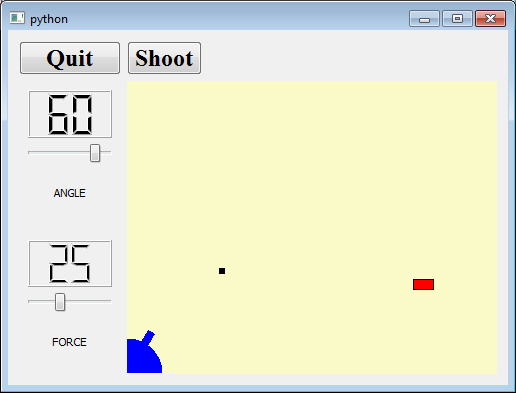
CannonField
#!/usr/bin/env python3
# -*- coding: utf-8 -*-

'''
    PyQt4 conversion of Qt Tutorial 12
    
    The differences from 111_battle.pyw are:              
            - added hit() and miss() signals
            - added newTarget() and targetRect() methods
            - added new attribute 'target' to hold the target's center point
            - modified paintEvent() and added paintTarget()
            - added a main() for testing
                                   
    NOTES:
    =====
    The orignal C++ code set up the 'firstTarget' variable as a static
    method variable within the newTarget() method. As the variable is
    only accessed once, it's been setup here as a class attribute.
    
last modified: 2012-01-21 jg
ref: 
    http://doc.trolltech.com/3.3/tutorial1-12.html
'''

from math import (cos, sin)
from random import (seed, randrange)
from PyQt4.QtGui import (QWidget, QColor, QPainter, QSizePolicy, QPixmap)
from PyQt4.QtCore import (Qt, pyqtSignal, pyqtSlot, QRect, QTimer, QPoint, QTime)

class CannonField(QWidget):
    cRect = None                     # class attribute, only one can exist
    bRect = QRect(33, -4, 15, 8)     # class attribute, cannon barrel definition
    firstTarget = True               # first time we're creating a target

    def __init__(self, parent=None):
        super(QWidget, self).__init__(parent)
        self.setObjectName('cannonField')
        self.ang = 45
        self.f = 0          # force
        self.target = QPoint(0, 0)

        # add timer to handle shooting
        self.autoShootTimer = QTimer(self)
        self.autoShootTimer.timeout.connect(self._moveShot)

        # set background colour
        pal = self.palette()
        pal.setColor(self.backgroundRole(), QColor(250, 250, 200))
        self.setPalette(pal)
        self.setAutoFillBackground(True)

        self.newTarget()    # create a target

    # custom signals
    angleChanged = pyqtSignal(int, name="angleChanged")
    forceChanged = pyqtSignal(int, name="forceChanged")
    missed = pyqtSignal(name="missed")
    hit = pyqtSignal(name="hit")

    def newTarget(self):
        if CannonField.firstTarget:
            CannonField.firstTarget = False
            midnight = QTime(0, 0, 0)
            seed(midnight.secsTo(QTime.currentTime()))

        r = self._targetRect()
        self.target = QPoint(200 + randrange(0, 190),
                             10 + randrange(0, 255))
        self.repaint(r.unite(self._targetRect()))

    def shoot(self):
        ''' Shoots a 'shot' unless one is in the air. '''
        if self.autoShootTimer.isActive(): return

        self.timerCount = 0
        self.shoot_ang = self.ang
        self.shoot_f = self.f
        self.autoShootTimer.start(50)

    # define the screen area containing the cannon
    # using a 'private' method
    def _cannonRect(self):
        if not CannonField.cRect:   # create once
            r = QRect(0, 0, 50, 50)
            r.moveBottomLeft(self.rect().bottomLeft())
            return r
        else:   # already defined so return existing rectangle
            return CannonField.cRect

    @pyqtSlot()
    def _moveShot(self):
        # moves the 'shot' every 50 milliseconds when the
        # timer is fired in shoot()
        r = self._shotRect()
        self.timerCount += 1
        shotR = self._shotRect()

        if shotR.intersects(self._targetRect()):
            self.autoShootTimer.stop()
            self.hit.emit()
        elif (shotR.x() > self.width()) or (shotR.y() > self.height()):
            self.autoShootTimer.stop()
            self.missed.emit()
        else:
            r = r.unite(shotR)
        self.repaint(r)

    def _shotRect(self):
        # identifies where the 'shot' is on the screen and returns
        # its bounding rectangle
        gravity = 4
        time = self.timerCount / 4.0
        velocity = self.shoot_f
        radians = self.shoot_ang * 3.14159265 / 180

        velx = velocity * cos(radians)
        vely = velocity * sin(radians)
        x0 = (CannonField.bRect.right() + 5) * cos(radians)
        y0 = (CannonField.bRect.right() + 5) * sin(radians)
        x = x0 + velx * time
        y = y0 + vely * time - 0.5 * gravity * time * time

        r = QRect(0, 0, 6, 6)
        r.moveCenter(QPoint(int(x), self.height() - 1 - int(y)))
        return r

    def _targetRect(self):
        r = QRect(0, 0, 20, 10)
        r.moveCenter(QPoint(self.target.x(), self.height() - 1 - self.target.y()))
        return r

    def setAngle(self, degrees):
        if degrees < 5: degrees = 5
        elif degrees > 70: degrees = 70
        elif self.ang == degrees: return

        self.ang = degrees
        self.repaint(self._cannonRect())
        self.angleChanged.emit(self.ang)

    # handle the force of the cannon shot
    def setForce(self, newton):
        if newton < 0: newton = 0
        elif self.f == newton: return

        self.f = newton
        self.forceChanged.emit(self.f)

    def paintEvent(self, event):
        updateR = event.rect()
        p = QPainter(self)

        if updateR.intersects(self._cannonRect()):
            self.paintCannon(p)
        if self.autoShootTimer.isActive() and updateR.intersects(self._shotRect()):
            self.paintShot(p)
        if updateR.intersects(self._targetRect()):
            self.paintTarget(p)

    def paintTarget(self, p):
        p.setBrush(Qt.red)
        p.setPen(Qt.black)
        p.drawRect(self._targetRect())

    def paintShot(self, p):
        p.setBrush(Qt.black)
        p.setPen(Qt.NoPen)
        p.drawRect(self._shotRect())

    def paintCannon(self, p):
        cr = self._cannonRect()
        pix = QPixmap(cr.size())
        pix.fill(self, cr.topLeft())

        tmp = QPainter(pix)
        tmp.setBrush(Qt.blue)     # brush colour for filling object
        tmp.setPen(Qt.NoPen)      # no special edges

        # set QPainter's origin (0,0) coords to the bottom-left
        tmp.translate(0, pix.height() - 1)

        # draw a quarter circle in the bottom left corner
        tmp.drawPie(QRect(-35, -35, 70, 70), 0, 90 * 16)

        # rotate counter-clockwise 'ang' degrees around the origin
        # and draw the cannon's barrel
        tmp.rotate(-self.ang)
        tmp.drawRect(CannonField.bRect)
        tmp.end()

        # paint the pixmap on the screen
        p.drawPixmap(cr.topLeft(), pix)

    def sizePolicy(self):
        return QSizePolicy(QSizePolicy.Expanding, QSizePolicy.Expanding)

def main():
    import sys
    from PyQt4.QtGui import (QApplication)
    app = QApplication(sys.argv)    # required

    w = CannonField()
    w.setGeometry(100, 100, 500, 355)
    w.show()

    sys.exit(app.exec_())   # start main event loop, exit when app closed

if __name__ == '__main__':
    main()

MyWidget
#!/usr/bin/env python3
# -*- coding: utf-8 -*-

'''
    PyQt4 conversion of Qt Tutorial 12
    
    In this example, we extend our LCDRange class to include a text label. 
    We also provide something to shoot at.
    
    The differences from 111_battle.pyw are:
        1. Refactored LCDRange and CannonField, moving them to separate modules.
           Makes them easier to modify and test
        2. MyWdiget
            - modified calls to LCDRange to provide widget names
                           
    BEHAVIOUR:
    =========
    The LCDRange widgets look a bit strange - the built-in layout management in 
    QVBox gives the labels too much space and the rest not enough. 
    We'll fix that in the next chapter.

            
last modified: 2012-01-21 jg
ref: 
    http://doc.trolltech.com/3.3/tutorial1-12.html
'''
import sys
from PyQt4.QtGui import (QApplication, QWidget, QPushButton, QFont,
                         QVBoxLayout, QGridLayout, QHBoxLayout)
from t112_lcdrange import (LCDRange)
from t112_cannon import (CannonField)

class MyWidget(QWidget):
    def __init__(self, parent=None, name=''):
        super(MyWidget, self).__init__(parent)
        if name:
            self.setObjectName(name)

        quitBtn = QPushButton('&Quit', self)
        quitBtn.setFont(QFont("Times", 18, QFont.Bold))
        quitBtn.clicked.connect(QApplication.instance().quit)

        angle = LCDRange(wlabel="ANGLE")
        angle.setRange(5, 70)

        # add LCDRange widget to handle force
        force = LCDRange(wlabel="FORCE")
        force.setRange(10, 50)

        cannonField = CannonField(self)
        angle.slider.valueChanged.connect(cannonField.setAngle)
        cannonField.angleChanged.connect(angle.setValue)

        # add event handling for 'force'
        force.slider.valueChanged.connect(cannonField.setForce)
        cannonField.forceChanged.connect(force.setValue)

        shootBtn = QPushButton('&Shoot', self)
        shootBtn.setFont(QFont("Times", 18, QFont.Bold))
        shootBtn.clicked.connect(cannonField.shoot)

        grid = QGridLayout()
        grid.addWidget(quitBtn, 0, 0)
        grid.addWidget(cannonField, 1, 1)
        grid.setColumnStretch(1, 10)

        # add the angle and force widgets 
        leftBox = QVBoxLayout()
        grid.addLayout(leftBox, 1, 0)
        leftBox.addWidget(angle)
        leftBox.addWidget(force)
        self.setLayout(grid)

        # add the 'shoot' button
        topBox = QHBoxLayout()
        grid.addLayout(topBox, 0, 1)
        topBox.addWidget(shootBtn)
        topBox.addStretch(1)

        angle.setValue(60)
        force.setValue(25)
        angle.setFocus()    # give the LCDRange object keyboard focus

def main():
    app = QApplication(sys.argv)    # required

    w = MyWidget()
    w.setGeometry(100, 100, 500, 355)
    w.show()

    sys.exit(app.exec_())   # start main event loop, exit when app closed

if __name__ == '__main__':
    main()

Qt Tutorial #1-13 Game Over

This is from Qt Tutorial #1-13 Game Over.  Again, this is split across 3 files.


LCDRange
#!/usr/bin/env python3
# -*- coding: utf-8 -*-

'''
    PyQt4 conversion of Qt Tutorial 13
    
    The differences from 112_battle.pyw are:
        - modified layout to allow digit display to take additional space
        
last modified: 2012-01-21 jeg
ref: 
    http://doc.trolltech.com/3.3/tutorial1-13.html
'''

from PyQt4.QtGui import (QWidget, QLabel, QLCDNumber, QSlider, QVBoxLayout)
from PyQt4.QtCore import (Qt, pyqtSlot)

class LCDRange(QWidget):
    '''
        A two digit QLCDNumber and QSlider widget.
    '''
    def __init__(self, wlabel='', parent=None):
        super(LCDRange, self).__init__(parent)

        self.label = QLabel(wlabel)
        self.label.setAlignment(Qt.AlignCenter)

        lcd = QLCDNumber(2, self);

        self.slider = QSlider(Qt.Horizontal, self);
        self.slider.setRange(0, 99);
        self.slider.setValue(0);

        self.slider.valueChanged.connect(lcd.display)

        layout = QVBoxLayout()
        layout.addWidget(lcd, 1)    # give additional space to the digit display
        layout.addWidget(self.slider)
        layout.addWidget(self.label)
        self.setLayout(layout)

        # set the widget focus to the 'slider' object
        self.setFocusProxy(self.slider)

    def text(self):
        return self.label.text()

    def setText(self, txt):
        self.label.setText(txt)

    def value(self):
        return self.slider.value()

    @pyqtSlot(int)
    def setValue(self, value):
        self.slider.setValue(value)

    # set the 'slider' range, if min and max values are not
    # between 0 and 99, print a warning message and leave
    # the slider values as they were
    def setRange(self, minVal, maxVal):
        if (minVal < 0 or maxVal > 99 or minVal > maxVal) :
            qWarning("LCDRange.setRange({0},{1})\n"
                     "\tRange must be 0..99\n"
                     "\tand minVal must not be greater than maxVal".format(minVal, maxVal))
            return

        self.slider.setRange(minVal, maxVal)

def main():
    import sys
    from PyQt4.QtGui import (QApplication)
    app = QApplication(sys.argv)    # required

    w = LCDRange(wlabel="ANGLE")
    w.setGeometry(100, 100, 500, 355)
    w.show()

    sys.exit(app.exec_())   # start main event loop, exit when app closed

if __name__ == '__main__':
    main()

CannonField
#!/usr/bin/env python3
# -*- coding: utf-8 -*-

'''
    PyQt4 conversion of Qt Tutorial 13
    
        Now handles 'game over' conditions and displays hits/misses
    
    The differences from 112_battle.pyw are:    
        - added methods gameOver(), setGameOver(), restartGame()
        - modified paintEvent() to handle game over conditions
        - modified _moveShot() to handle canShoot()
        - added attribute: gameEnded
        - added signal: canShoot
                                   
    NOTES:
    =====
    
last modified: 2012-01-21 jg
ref: 
    http://doc.trolltech.com/3.3/tutorial1-13.html
'''

from math import (cos, sin)
from random import (seed, randrange)
from PyQt4.QtGui import (QWidget, QColor, QPainter, QSizePolicy,
                         QRegion, QPixmap, QFont)
from PyQt4.QtCore import (Qt, pyqtSignal, pyqtSlot, QRect, QTimer, QPoint, QTime)

class CannonField(QWidget):
    cRect = None                     # class attribute, only one can exist
    bRect = QRect(33, -4, 15, 8)     # class attribute, cannon barrel definition
    firstTarget = True               # first time we're creating a target

    def __init__(self, parent=None):
        super(QWidget, self).__init__(parent)
        self.setObjectName('cannonField')
        self.ang = 45
        self.f = 0          # force
        self.target = QPoint(0, 0)
        self.gameEnded = False

        # add timer to handle shooting
        self.autoShootTimer = QTimer(self)
        self.autoShootTimer.timeout.connect(self._moveShot)

        # set background colour
        pal = self.palette()
        pal.setColor(self.backgroundRole(), QColor(250, 250, 200))
        self.setPalette(pal)
        self.setAutoFillBackground(True)

        self.newTarget()    # create a target

    # custom signals
    angleChanged = pyqtSignal(int, name="angleChanged")
    forceChanged = pyqtSignal(int, name="forceChanged")
    missed = pyqtSignal(name="missed")
    hit = pyqtSignal(name="hit")
    canShoot = pyqtSignal(bool, name="canShoot")

    def newTarget(self):
        if CannonField.firstTarget:
            # seed random number generator
            CannonField.firstTarget = False
            midnight = QTime(0, 0, 0)
            seed(midnight.secsTo(QTime.currentTime()))

        r = QRegion(self._targetRect())
        self.target = QPoint(200 + randrange(0, 190),
                             10 + randrange(0, 255))
        self.repaint(r.unite(QRegion(self._targetRect())))

    def gameOver(self):
        return self.gameEnded

    def setGameOver(self):
        if self.gameEnded:
            return
        if self.isShooting():
            self.autoShootTimer.stop()
        self.gameEnded = True
        self.repaint()

    def restartGame(self):
        if self.isShooting():
            self.autoShootTimer.stop()
        self.gameEnded = False
        self.target = QPoint(0, 0)    # force repaint of old target  
        self.repaint()
        self.canShoot.emit(True)

    def isShooting(self):
        return self.autoShootTimer.isActive()

    def shoot(self):
        if self.isShooting():
            return

        self.timerCount = 0
        self.shoot_ang = self.ang
        self.shoot_f = self.f
        self.autoShootTimer.start(1)
        self.canShoot.emit(False)

    # define the screen area containing the cannon
    # using a 'private' method
    def _cannonRect(self):
        if not CannonField.cRect:   # create once
            r = QRect(0, 0, 50, 50)
            r.moveBottomLeft(self.rect().bottomLeft())
            return r
        else:   # already defined so return existing rectangle
            return CannonField.cRect

    @pyqtSlot()
    def _moveShot(self):
        # moves the 'shot' every 50 milliseconds when the
        # timer is fired in shoot()
        r = self._shotRect()
        self.timerCount += 1
        shotR = self._shotRect()

        if shotR.intersects(self._targetRect()):
            self.autoShootTimer.stop()
            self.hit.emit()
            self.canShoot.emit(True)
        elif (shotR.x() > self.width()) or (shotR.y() > self.height()):
            self.autoShootTimer.stop()
            self.missed.emit()
            self.canShoot.emit(True)
        else:
            r = r.unite(shotR)
        self.repaint(r)

    def _shotRect(self):
        # identifies where the 'shot' is on the screen and returns
        # its bounding rectangle
        gravity = 4
        time = self.timerCount / 4.0
        velocity = self.shoot_f
        radians = self.shoot_ang * 3.14159265 / 180

        velx = velocity * cos(radians)
        vely = velocity * sin(radians)
        x0 = (CannonField.bRect.right() + 5) * cos(radians)
        y0 = (CannonField.bRect.right() + 5) * sin(radians)
        x = x0 + velx * time
        y = y0 + vely * time - 0.5 * gravity * time * time

        r = QRect(0, 0, 6, 6)
        r.moveCenter(QPoint(int(x), self.height() - 1 - int(y)))
        return r

    def _targetRect(self):
        r = QRect(0, 0, 20, 10)
        r.moveCenter(QPoint(self.target.x(), self.height() - 1 - self.target.y()))
        return r

    def setAngle(self, degrees):
        if degrees < 5: degrees = 5
        elif degrees > 70: degrees = 70
        elif self.ang == degrees: return

        self.ang = degrees
        self.repaint(self._cannonRect())
        self.angleChanged.emit(self.ang)

    # handle the force of the cannon shot
    def setForce(self, newton):
        if newton < 0: newton = 0
        elif self.f == newton: return

        self.f = newton
        self.forceChanged.emit(self.f)

    def paintEvent(self, event):
        updateR = event.rect()
        p = QPainter(self)

        if self.gameEnded:
            p.setPen(Qt.black)
            p.setFont(QFont("Courier", 48, QFont.Bold))
            p.drawText(self.rect(), Qt.AlignCenter, "Game Over")

        if updateR.intersects(self._cannonRect()):
            self.paintCannon(p)
        if self.autoShootTimer.isActive() and updateR.intersects(self._shotRect()):
            self.paintShot(p)
        if updateR.intersects(self._targetRect()):
            self.paintTarget(p)

    def paintTarget(self, p):
        p.setBrush(Qt.red)
        p.setPen(Qt.black)
        p.drawRect(self._targetRect())

    def paintShot(self, p):
        p.setBrush(Qt.black)
        p.setPen(Qt.NoPen)
        p.drawRect(self._shotRect())

    def paintCannon(self, p):
        cr = self._cannonRect()
        pix = QPixmap(cr.size())
        pix.fill(self, cr.topLeft())

        tmp = QPainter(pix)
        tmp.setBrush(Qt.blue)     # brush colour for filling object
        tmp.setPen(Qt.NoPen)      # no special edges

        # set QPainter's origin (0,0) coords to the bottom-left
        tmp.translate(0, pix.height() - 1)

        # draw a quarter circle in the bottom left corner
        tmp.drawPie(QRect(-35, -35, 70, 70), 0, 90 * 16)

        # rotate counter-clockwise 'ang' degrees around the origin
        # and draw the cannon's barrel
        tmp.rotate(-self.ang)
        tmp.drawRect(CannonField.bRect)
        tmp.end()

        # paint the pixmap on the screen
        p.drawPixmap(cr.topLeft(), pix)

    def sizePolicy(self):
        return QSizePolicy(QSizePolicy.Expanding, QSizePolicy.Expanding)

def main():
    import sys
    from PyQt4.QtGui import (QApplication)
    app = QApplication(sys.argv)    # required

    w = CannonField()
    w.setGeometry(100, 100, 500, 355)
    w.show()
    w.setGameOver()

    sys.exit(app.exec_())   # start main event loop, exit when app closed

if __name__ == '__main__':
    main()

MyWidget
#!/usr/bin/env python3
# -*- coding: utf-8 -*-

'''
    PyQt4 conversion of Qt Tutorial 13
    
    In this example we start to approach a real playable game with a score. 
    We give MyWidget a new name (GameBoard) and add some slots.
    
    The differences from 112_battle.pyw are:
        - renamed MyWidget() to GameBoard()
        - turned 'cannonField' into an attribute
        - added methods: fire(), hit(), missed(), newGame() 
        - added widgets for shots left and hits

    BEHAVIOUR:
    =========
    The cannon can shoot at a target; a new target is automatically created when 
    one has been hit.

    Hits and shots left are displayed and the program keeps track of them. 
    The game can end, and there's a button to start a new game.
            
last modified: 2012-01-21 jg
ref: 
    http://doc.trolltech.com/3.3/tutorial1-13.html
'''
import sys
from PyQt4.QtGui import (QApplication, QWidget, QPushButton, QFont, QLabel, QLCDNumber,
                         QVBoxLayout, QGridLayout, QHBoxLayout)
from t113_lcdrange import (LCDRange)
from t113_cannon import (CannonField)

class GameBoard(QWidget):
    def __init__(self, parent=None, name=''):
        super(GameBoard, self).__init__(parent)
        if name:
            self.setObjectName(name)

        quitBtn = QPushButton('&Quit', self)
        quitBtn.setFont(QFont("Times", 18, QFont.Bold))
        quitBtn.clicked.connect(QApplication.instance().quit)

        angle = LCDRange(wlabel="ANGLE")
        angle.setRange(5, 70)

        # add LCDRange widget to handle force
        force = LCDRange(wlabel="FORCE")
        force.setRange(10, 50)

        self.cannonField = CannonField(self)
        angle.slider.valueChanged.connect(self.cannonField.setAngle)
        self.cannonField.angleChanged.connect(angle.setValue)

        # add event handling for 'force'
        force.slider.valueChanged.connect(self.cannonField.setForce)
        self.cannonField.forceChanged.connect(force.setValue)

        # handle target hits/misses
        self.cannonField.hit.connect(self.hit)
        self.cannonField.missed.connect(self.missed)

        # buttons
        shootBtn = QPushButton('&Shoot', self)
        shootBtn.setFont(QFont("Times", 18, QFont.Bold))
        shootBtn.clicked.connect(self.fire)
        self.cannonField.canShoot.connect(self.setEnabled)

        restartBtn = QPushButton("&New Game", self)
        restartBtn.setFont(QFont("Times", 18, QFont.Bold))
        restartBtn.clicked.connect(self.newGame)

        self.hits = QLCDNumber(2, self)
        self.shotsLeft = QLCDNumber(2, self)
        self.hitsL = QLabel("HITS", self)
        self.shotsLeftL = QLabel("SHOTS LEFT", self)

        # layout widgets
        grid = QGridLayout()
        grid.addWidget(quitBtn, 0, 0)
        grid.addWidget(self.cannonField, 1, 1)
        grid.setColumnStretch(1, 10)

        # add the angle and force widgets 
        leftBox = QVBoxLayout()
        grid.addLayout(leftBox, 1, 0)
        leftBox.addWidget(angle)
        leftBox.addWidget(force)

        # add the 'shoot' button
        topBox = QHBoxLayout()
        grid.addLayout(topBox, 0, 1)
        topBox.addWidget(shootBtn)
        topBox.addWidget(self.hits)
        topBox.addWidget(self.hitsL)
        topBox.addWidget(self.shotsLeft)
        topBox.addWidget(self.shotsLeftL)
        topBox.addStretch(1)
        topBox.addWidget(restartBtn)

        self.setLayout(grid)

        angle.setValue(60)
        force.setValue(25)
        angle.setFocus()    # give the LCDRange object keyboard focus

        self.newGame()

    def fire(self):
        if self.cannonField.gameOver() or self.cannonField.isShooting():
            return
        self.shotsLeft.display(self.shotsLeft.intValue() - 1)
        self.cannonField.shoot()

    def hit(self):
        self.hits.display(self.hits.intValue() + 1)
        if self.shotsLeft.intValue() == 0:
            self.cannonField.setGameOver()
        else:
            self.cannonField.newTarget()

    def missed(self):
        if self.shotsLeft.intValue() == 0:
            self.cannonField.setGameOver()

    def newGame(self):
        self.shotsLeft.display(15)
        self.hits.display(0)
        self.cannonField.restartGame()
        self.cannonField.newTarget()

def main():
    app = QApplication(sys.argv)    # required

    w = GameBoard()
    w.setGeometry(100, 100, 500, 355)
    w.show()

    sys.exit(app.exec_())   # start main event loop, exit when app closed

if __name__ == '__main__':
    main()

Qt Tutorial #1-14 Facing the Wall

This is based on Qt Tutorial #1-14 Facing the Wall The LCDRange is the same as that used in Qt Tutorial #1-13 and so is not included in this post.


 CannonField
#!/usr/bin/env python3
# -*- coding: utf-8 -*-

'''
    PyQt4 conversion of Qt Tutorial 14
        The cannon can now handle mouse events.
    
    The differences from 113_battle.pyw are:   
        - re-organised code and added slot decorators
        - added methods: mousePressEvent(), mouseMoveEvent(), mouseReleaseEvent()
                         _paintBarrier(), _barrierRect(), _barrelHit()
        - added attribute: barrelPressed, timerCount
                                  
last modified: 2012-01-22 jg
ref: 
    http://doc.trolltech.com/3.3/tutorial1-14.html
'''

from math import (cos, sin, atan)
from random import (seed, randrange)
from PyQt4.QtGui import (QWidget, QColor, QPainter, QSizePolicy,
                         QRegion, QPixmap, QFont, QMatrix)
from PyQt4.QtCore import (Qt, pyqtSignal, pyqtSlot, QRect, QTimer,
                          QPoint, QTime, QSize)

class CannonField(QWidget):
    cRect = None                     # class attribute, only one can exist
    bRect = QRect(33, -4, 15, 8)     # class attribute, cannon barrel definition
    firstTarget = True               # first time we're creating a target

    def __init__(self, parent=None):
        super(QWidget, self).__init__(parent)
        self.setObjectName('cannonField')
        self.ang = 45
        self.f = 0          # force
        self.target = QPoint(0, 0)
        self.gameEnded = False
        self.barrelPressed = False

        # add timer to handle shooting
        self.autoShootTimer = QTimer(self)
        self.autoShootTimer.timeout.connect(self._moveShot)
        self.timerCount = 0
        self.shoot_ang = 0
        self.shoot_f = 0

        # set background colour
        pal = self.palette()
        pal.setColor(self.backgroundRole(), QColor(250, 250, 200))
        self.setPalette(pal)
        self.setAutoFillBackground(True)

        self.newTarget()    # create a target

    # custom signals -----------------------------------------------------------------------------
    angleChanged = pyqtSignal(int, name="angleChanged")
    forceChanged = pyqtSignal(int, name="forceChanged")
    missed = pyqtSignal(name="missed")
    hit = pyqtSignal(name="hit")
    canShoot = pyqtSignal(bool, name="canShoot")

    # custom slots -------------------------------------------------------------------------------
    @pyqtSlot()
    def setGameOver(self):
        if self.gameEnded:
            return
        if self.isShooting():
            self.autoShootTimer.stop()
        self.gameEnded = True
        self.repaint()

    @pyqtSlot()
    def restartGame(self):
        if self.isShooting():
            self.autoShootTimer.stop()
        self.gameEnded = False
        self.target = QPoint(0, 0)    # force repaint of old target  
        self.repaint()
        self.canShoot.emit(True)

    @pyqtSlot()
    def newTarget(self):
        if CannonField.firstTarget:
            # seed random number generator
            CannonField.firstTarget = False
            midnight = QTime(0, 0, 0)
            seed(midnight.secsTo(QTime.currentTime()))

        r = QRegion(self._targetRect())
        self.target = QPoint(200 + randrange(0, 190),
                             10 + randrange(0, 255))
        self.repaint(r.unite(QRegion(self._targetRect())))

    @pyqtSlot()
    def shoot(self):
        if self.isShooting():
            return

        self.timerCount = 0
        self.shoot_ang = self.ang
        self.shoot_f = self.f
        self.autoShootTimer.start(1)
        self.canShoot.emit(False)

    @pyqtSlot(int)
    def setAngle(self, degrees):
        if degrees < 5: degrees = 5
        elif degrees > 70: degrees = 70
        elif self.ang == degrees: return

        self.ang = degrees
        self.repaint(self._cannonRect())
        self.angleChanged.emit(self.ang)

    @pyqtSlot(int)
    def setForce(self, newton):
        if newton < 0: newton = 0
        elif self.f == newton: return

        self.f = newton
        self.forceChanged.emit(self.f)

    @pyqtSlot()
    def _moveShot(self):
        r = self._shotRect()
        self.timerCount += 1
        shotR = self._shotRect()

        if shotR.intersects(self._targetRect()):
            self.autoShootTimer.stop()
            self.hit.emit()
            self.canShoot.emit(True)
        elif (shotR.x() > self.width() or
              shotR.y() > self.height() or
              shotR.intersects(self._barrierRect())):
            self.autoShootTimer.stop()
            self.missed.emit()
            self.canShoot.emit(True)
        else:
            r = r.unite(shotR)
        self.repaint(r)

    # public methods ------------------------------------------------------------------------------------
    def gameOver(self):
        return self.gameEnded

    def isShooting(self):
        return self.autoShootTimer.isActive()

    # method overrides ---------------------------------------------------------------------------
    #    override parent (QWidget) class methods to provide customised behaviours

    def sizePolicy(self):
        return QSizePolicy(QSizePolicy.Expanding, QSizePolicy.Expanding)

    def sizeHint(self):
        return QSize(400, 300)

    def paintEvent(self, event):
        updateR = event.rect()
        p = QPainter(self)

        if self.gameEnded:
            p.setPen(Qt.black)
            p.setFont(QFont("Courier", 48, QFont.Bold))
            p.drawText(self.rect(), Qt.AlignCenter, "Game Over")

        if updateR.intersects(self._cannonRect()):
            self._paintCannon(p)
        if updateR.intersects(self._barrierRect()):
            self._paintBarrier(p)
        if self.autoShootTimer.isActive() and updateR.intersects(self._shotRect()):
            self._paintShot(p)
        if updateR.intersects(self._targetRect()):
            self._paintTarget(p)

    def mousePressEvent(self, evt):
        if evt.button() != Qt.LeftButton:
            return
        if self._barrelHit(evt.pos()):
            self.barrelPressed = True

    def mouseMoveEvent(self, evt):
        if not self.barrelPressed:
            return

        pnt = QPoint(evt.pos())
        if pnt.x() <= 0:
            pnt.setX(1)
        if pnt.y() >= self.height():
            pnt.setY(self.height() - 1)

        rad = atan((self.rect().bottom() - pnt.y()) / pnt.x())
        self.setAngle(int(rad * 180 / 3.14159265))

    def mouseReleaseEvent(self, evt):
        if evt.button() == Qt.LeftButton:
            self.barrelPressed = False

    # private methods ----------------------------------------------------------------------------
    #    technically, methods which should not be called by external classes

    def _cannonRect(self):
        if not CannonField.cRect:   # create once
            r = QRect(0, 0, 50, 50)
            r.moveBottomLeft(self.rect().bottomLeft())
            return r
        else:   # already defined so return existing rectangle
            return CannonField.cRect

    def _shotRect(self):
        gravity = 4
        time = self.timerCount / 4.0
        velocity = self.shoot_f
        radians = self.shoot_ang * 3.14159265 / 180

        velx = velocity * cos(radians)
        vely = velocity * sin(radians)
        x0 = (CannonField.bRect.right() + 5) * cos(radians)
        y0 = (CannonField.bRect.right() + 5) * sin(radians)
        x = x0 + velx * time
        y = y0 + vely * time - 0.5 * gravity * time * time

        r = QRect(0, 0, 6, 6)
        r.moveCenter(QPoint(int(x), self.height() - 1 - int(y)))
        return r

    def _targetRect(self):
        r = QRect(0, 0, 20, 10)
        r.moveCenter(QPoint(self.target.x(), self.height() - 1 - self.target.y()))
        return r

    def _barrierRect(self):
        return QRect(145, self.height() - 100, 15, 100)

    def _barrelHit(self, p):
        # p = mouse position
        mtx = QMatrix()
        mtx.translate(0, self.height() - 1)
        mtx.rotate(-self.ang)
        mtx = QMatrix(mtx.inverted()[0])    # returns a tuple, 1st element is 
                                            # the inverted matrix
        print(self.bRect.contains(mtx.map(p)))
        return self.bRect.contains(mtx.map(p))

    # private custom paint methods -------------------------------------------------------------------------------
    def _paintTarget(self, p):
        p.setBrush(Qt.red)
        p.setPen(Qt.black)
        p.drawRect(self._targetRect())

    def _paintShot(self, p):
        p.setBrush(Qt.black)
        p.setPen(Qt.NoPen)
        p.drawRect(self._shotRect())

    def _paintBarrier(self, p):
        p.setBrush(Qt.yellow)
        p.setPen(Qt.black)
        p.drawRect(self._barrierRect())

    def _paintCannon(self, p):
        cr = self._cannonRect()
        pix = QPixmap(cr.size())
        pix.fill(self, cr.topLeft())

        tmp = QPainter(pix)
        tmp.setBrush(Qt.blue)     # brush colour for filling object
        tmp.setPen(Qt.NoPen)      # no special edges

        # set QPainter's origin (0,0) coords to the bottom-left
        tmp.translate(0, pix.height() - 1)

        # draw a quarter circle in the bottom left corner
        tmp.drawPie(QRect(-35, -35, 70, 70), 0, 90 * 16)

        # rotate counter-clockwise 'ang' degrees around the origin
        # and draw the cannon's barrel
        tmp.rotate(-self.ang)
        tmp.drawRect(CannonField.bRect)
        tmp.end()

        # paint the pixmap on the screen
        p.drawPixmap(cr.topLeft(), pix)


def main():
    import sys
    from PyQt4.QtGui import (QApplication)
    app = QApplication(sys.argv)    # required

    w = CannonField()
    w.setGeometry(100, 100, 500, 355)
    w.show()
    #w.setGameOver()

    sys.exit(app.exec_())   # start main event loop, exit when app closed

if __name__ == '__main__':
    main()

GameBoard (previously MyWidget)
#!/usr/bin/env python3
# -*- coding: utf-8 -*-

'''
    PyQt4 conversion of Qt Tutorial 14
    
    This is the final example: a complete game.
    We add keyboard accelerators and introduce mouse events to CannonField. 
    We put a frame around the CannonField and add a barrier (wall) to make the game more challenging.
    
    The differences from 113_battle.pyw are:
        - modified _init__()
        - added override for keyPressEvent()
        - blocked resizing, leaving minimizing as only option

    NOTES:
    =====
    The original C++ code placed the cannonField in a styled QVBox.
    In PyQt4 there is no QVBox and QVBoxLayout does not have a 
    setFrameStyle() method.  To reproduce the same look had to:
        1. Create a QFrame
        2. Style the frame
        3. Create a QVBoxLayout
        4. Set the layouts margins to 0
        4. Set the frame layout to the QVBoxLayout
        5. Add the cannonField to the layout
        6. Add the frame to the grid

    PyQt4 does not include QAccel (for creating keyboard accelerators)
    To reproduce the same behaviour i.e. trigger 'shoot()' if 'Enter'
    or 'Return' pressed, needed to override the keyPressEvent()

    BEHAVIOUR:
    =========
    The cannon now shoots when you press Enter. You can also position the cannon's
    angle using the mouse. The barrier makes it a little more challenging to play 
    the game. We also have a nice looking frame around the CannonField.
        
last modified: 2012-01-22 jg
ref: 
    http://doc.trolltech.com/3.3/tutorial1-14.html
'''
import sys
from PyQt4.QtGui import (QApplication, QWidget, QPushButton, QFont, QLabel, QLCDNumber,
                         QVBoxLayout, QGridLayout, QHBoxLayout, QFrame, QSizePolicy)
from PyQt4.QtCore import (Qt)
from t114_lcdrange import (LCDRange)
from t114_cannon import (CannonField)

class GameBoard(QWidget):
    def __init__(self, parent=None, name=''):
        super(GameBoard, self).__init__(parent)
        if name:
            self.setObjectName(name)

        quitBtn = QPushButton('&Quit', self)
        quitBtn.setFont(QFont("Times", 18, QFont.Bold))
        quitBtn.clicked.connect(QApplication.instance().quit)

        angle = LCDRange(wlabel="ANGLE")
        angle.setRange(5, 70)

        # add LCDRange widget to handle force
        force = LCDRange(wlabel="FORCE")
        force.setRange(10, 50)
        self.cannonField = CannonField(self)
        self.cannonField.setContentsMargins(10, 10, 10, 10)
        angle.slider.valueChanged.connect(self.cannonField.setAngle)
        self.cannonField.angleChanged.connect(angle.setValue)

        # add event handling for 'force'
        force.slider.valueChanged.connect(self.cannonField.setForce)
        self.cannonField.forceChanged.connect(force.setValue)

        # handle target hits/misses
        self.cannonField.hit.connect(self.hit)
        self.cannonField.missed.connect(self.missed)

        # buttons
        shootBtn = QPushButton('&Shoot', self)
        shootBtn.setFont(QFont("Times", 18, QFont.Bold))
        shootBtn.clicked.connect(self.fire)
        self.cannonField.canShoot.connect(self.setEnabled)

        restartBtn = QPushButton("&New Game", self)
        restartBtn.setFont(QFont("Times", 18, QFont.Bold))
        restartBtn.clicked.connect(self.newGame)

        self.hits = QLCDNumber(2, self)
        self.shotsLeft = QLCDNumber(2, self)
        self.hitsL = QLabel("HITS", self)
        self.shotsLeftL = QLabel("SHOTS LEFT", self)

        # layout widgets
        grid = QGridLayout()
        grid.addWidget(quitBtn, 0, 0)

        # create a frame to hold the cannonfield
        frame = QFrame()
        frame.setFrameStyle(QFrame.WinPanel | QFrame.Sunken)
        cfvbox = QVBoxLayout()
        cfvbox.setMargin(0)
        cfvbox.addWidget(self.cannonField)
        frame.setLayout(cfvbox)

        grid.addWidget(frame, 1, 1)
        grid.setColumnStretch(1, 10)

        # add the angle and force widgets 
        leftBox = QVBoxLayout()
        grid.addLayout(leftBox, 1, 0)
        leftBox.addWidget(angle)
        leftBox.addWidget(force)

        # add the 'shoot' button
        topBox = QHBoxLayout()
        grid.addLayout(topBox, 0, 1)
        topBox.addWidget(shootBtn)
        topBox.addWidget(self.hits)
        topBox.addWidget(self.hitsL)
        topBox.addWidget(self.shotsLeft)
        topBox.addWidget(self.shotsLeftL)
        topBox.addStretch(1)
        topBox.addWidget(restartBtn)

        self.setLayout(grid)

        angle.setValue(60)
        force.setValue(25)
        angle.setFocus()    # give the LCDRange object keyboard focus

        self.setFixedSize(500, 355) # prevent resizing

        self.newGame()

    def keyPressEvent(self, evt):
        if evt.key() in (Qt.Key_Enter, Qt.Key_Return):
            self.fire()
            evt.accept()

    def fire(self):
        if self.cannonField.gameOver() or self.cannonField.isShooting():
            return
        self.shotsLeft.display(self.shotsLeft.intValue() - 1)
        self.cannonField.shoot()

    def hit(self):
        self.hits.display(self.hits.intValue() + 1)
        if self.shotsLeft.intValue() == 0:
            self.cannonField.setGameOver()
        else:
            self.cannonField.newTarget()

    def missed(self):
        if self.shotsLeft.intValue() == 0:
            self.cannonField.setGameOver()

    def newGame(self):
        self.shotsLeft.display(15)
        self.hits.display(0)
        self.cannonField.restartGame()
        self.cannonField.newTarget()

def main():
    app = QApplication(sys.argv)    # required

    w = GameBoard()
    w.setGeometry(100, 100, 500, 355)
    w.setWindowTitle("Battle Game")
    w.show()

    sys.exit(app.exec_())   # start main event loop, exit when app closed

if __name__ == '__main__':
    main()