#!/usr/bin/env python3
# -*- coding: utf-8 -*-
'''
PyQt4 conversion of Qt Tutorial 'Hello Notepad'
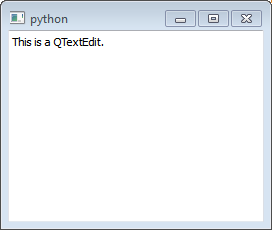
In this first example, we simply create and show a text edit in a window
frame on the desktop. This represents the simplest possible Qt program
that has a GUI.
NOTES:
=====
Every Qt GUI application must have one, and only one, QApplication
instance; it is responsible for managing the application resources
and the event thread.
last modified: 2012-01-23 jg
ref: http://developer.qt.nokia.com/doc/qt-4.8/gettingstartedqt.html
'''
import sys
from PyQt4.QtGui import (QApplication, QTextEdit)
def main():
app = QApplication(sys.argv) # required for all GUI applications
te = QTextEdit()
te.setText("This is a QTextEdit.")
te.show() # make me visible
sys.exit(app.exec_()) # start main event thread
if __name__ == '__main__':
main()
Showing posts with label Qt Notepad Tutorial. Show all posts
Monday, January 23, 2012
Qt 4.8 Notepad Tutorial - Part 1
The following code is based on the Qt Getting Started Programming with Qt Hello Notepad tutorial. There are five parts in all.
Labels:
Qt Notepad Tutorial
Qt 4.8 Notepad Tutorial - Part 2
The following code is based on the Qt Getting Started Programming with Qt Hello Notepad tutorial. There are five parts in all.
#!/usr/bin/env python3
# -*- coding: utf-8 -*-
'''
PyQt4 conversion of Qt Tutorial 'Hello Notepad'
In a real application, you will normally need more than one widget.
We will now introduce a QPushButton beneath the text edit.
The button will exit the Notepad application when pushed
(i.e., clicked on with the mouse).
NOTES:
=====
The Quit button uses Qt's signal/slot mechanism to connect an
event message (signal) with a method (slot). In this example,
when the Quit button is 'clicked' the QApplication's instance
quit() method (slot) is called and the application is closed.
On Windows, the Quit button will not display a line under the 'Q' for
the short-cut key until the ALT key is pressed.
last modified: 2012-01-23 jg
ref: http://developer.qt.nokia.com/doc/qt-4.8/gettingstartedqt.html
'''
import sys
from PyQt4.QtGui import (QApplication, QTextEdit, QPushButton, QWidget,
QVBoxLayout)
def main():
app = QApplication(sys.argv) # required for all GUI applications
te = QTextEdit()
te.setText("Click the Quit button to quit.")
quitBtn = QPushButton("&Quit") # ampersand identifies short-cut ALT+Q
# connect the 'quitBtn' signal 'clicked' with slot 'app.quit'
quitBtn.clicked.connect(app.quit)
layout = QVBoxLayout() # create a vertical box layout
layout.addWidget(te) # add the textedit widget
layout.addWidget(quitBtn) # add the quit button
window = QWidget() # create an empty widget
window.setLayout(layout) # give it the layout we just created
window.show() # make everything visible
sys.exit(app.exec_()) # start the main event thread
if __name__ == '__main__':
main()
Labels:
Qt Notepad Tutorial
Qt 4.8 Notepad Tutorial - Part 3
The following code is based on the Qt Getting Started Programming with Qt Hello Notepad tutorial. There are five parts in all.
#!/usr/bin/env python3
# -*- coding: utf-8 -*-
'''
PyQt4 conversion of Qt Tutorial 'Hello Notepad'
When the user wants to quit an application, you might want to
pop-up a dialog that asks whether he/she really wants to quit.
In this example, we subclass QWidget, and add a slot that we
connect to the Quit button.
NOTES:
=====
The original code defines 'textEdit' as a 'private' variable.
This is simulated here by the underscore in '_textEdit' although
this is only to signal to other developers that the variable
is not meant to be accessed by external classes.
Python, unlike C++ and Java, does not enforce privacy, as is
evident when the 'notepad._textEdit.setText()' method is called in main().
The original code also defines the Quit button variable as private.
Here it is simply defined as a local variable within the __init__
method as it is not called by any of the class methods. Neither
can it be accessed by external methods such as main(); it's scope
(accessibility) is limited to the __init__ method.
User visible strings are wrapped in the 'self.tr()' function
which is provided by QObject, the base class for all Qt objects.
The function makes the strings accessible to the Qt translation
utility 'Qt Linguist'
The 'quit()' method has been renamed 'quit_()' as 'quit' is a
reserved word in Python. Since the method is being used as a
'slot' it has been identified as such using a PyQt4 decorator
which, according to the PyQt4 documentation, will improve
memory performance.
last modified: 2012-01-23 jg
ref:
http://developer.qt.nokia.com/doc/qt-4.8/gettingstartedqt.html
http://www.riverbankcomputing.co.uk/static/Docs/PyQt4/html/new_style_signals_slots.html
'''
import sys
from PyQt4.QtGui import (QApplication, QTextEdit, QPushButton, QWidget,
QVBoxLayout, QMessageBox)
from PyQt4.QtCore import (pyqtSlot)
class Notepad(QWidget): # subclass QWidget
def __init__(self, parent=None):
super(Notepad, self).__init__(parent) # initialise base (QWidget) class
self._textEdit = QTextEdit()
quitBtn = QPushButton(self.tr("&Quit"))
# connect the quitBtn to this objects quit() method
quitBtn.clicked.connect(self.quit_)
layout = QVBoxLayout()
layout.addWidget(self._textEdit)
layout.addWidget(quitBtn)
self.setLayout(layout)
self.setWindowTitle(self.tr("Notepad"))
@pyqtSlot() # identify this method as a 'slot'
def quit_(self):
msgBox = QMessageBox()
msgBox.setWindowTitle(self.tr("Notepad"))
msgBox.setText(self.tr("Are you sure you want to quit?"))
msgBox.setStandardButtons(QMessageBox.Yes | QMessageBox.No)
msgBox.setDefaultButton(QMessageBox.No)
if msgBox.exec() == QMessageBox.Yes:
QApplication.instance().quit()
def main():
app = QApplication(sys.argv)
notepad = Notepad()
notepad._textEdit.setText("We now inherit QWidget.")
notepad.show()
sys.exit(app.exec_())
if __name__ == '__main__':
main()
Labels:
Qt Notepad Tutorial
Qt 4.8 Notepad Tutorial - Part 4
The following code is based on the Qt Getting Started Programming with Qt Hello Notepad tutorial. There are five parts in all.
#!/usr/bin/env python3
# -*- coding: utf-8 -*-
'''
PyQt4 conversion of Qt Tutorial 'Hello Notepad'
Many applications will benefit from using a QMainWindow, which has
its own layout to which you can add a menu bar, dock widgets, tool bars,
and a status bar. QMainWindow has a centre area that can be occupied by
any kind of widget. In our case, we will place our text edit there.
NOTES:
=====
The 'loadAction' has been renamed '_openAction', 'File->Open...'
being more of a standard.
For now, only local variables are used (no attributes)
The two 'slot' methods have been defined as empty private methods.
last modified: 2012-01-23 jg
ref: http://developer.qt.nokia.com/doc/qt-4.8/gettingstartedqt.html
'''
import sys
from PyQt4.QtGui import (QApplication, QMainWindow, QAction, QTextEdit)
from PyQt4.QtCore import (pyqtSlot)
class Notepad(QMainWindow):
def __init__(self, parent=None):
super(Notepad, self).__init__(parent)
# define menu actions
openAction = QAction(self.tr("&Open..."), self)
saveAction = QAction(self.tr("&Save..."), self)
exitAction = QAction(self.tr("&Exit"), self)
# set up signal/slot connections for event handling
openAction.triggered.connect(self._open)
saveAction.triggered.connect(self._save)
exitAction.triggered.connect(QApplication.instance().quit)
# create a dropdown 'File' menu on the window menu bar
fileMenu = self.menuBar().addMenu(self.tr("&File..."))
# add the open and save actions to the File menu
fileMenu.addAction(openAction)
fileMenu.addAction(saveAction)
# add the exit action to the menu bar as a separate menu item
self.menuBar().addAction(exitAction)
# create the textEdit widget and add it as
# the central widget for the window
textEdit = QTextEdit()
self.setCentralWidget(textEdit)
self.setWindowTitle(self.tr("Notepad"))
# define private slots (methods) ------------------------------------------
@pyqtSlot()
def _open(self):
pass
@pyqtSlot()
def _save(self):
pass
def main():
app = QApplication(sys.argv)
notepad = Notepad()
notepad.show()
sys.exit(app.exec_())
if __name__ == '__main__':
main()
Labels:
Qt Notepad Tutorial
Qt 4.8 Notepad Tutorial - Part 5
The following code is based on the Qt Getting Started Programming with Qt Hello Notepad tutorial. There are five parts in all.
#!/usr/bin/env python3
# -*- coding: utf-8 -*-
'''
PyQt4 conversion of Qt Tutorial 'Hello Notepad'
In this example, we will implement the functionality of the open()
and save() slots that we added in the previous example.
NOTES:
=====
The text editor is defined as a 'private attribute'. It is the only
variable requiring access by other methods within the class.
The built-in dialog QFileDialog is called by both the 'Open'
and 'Save' methods; allowing the user to easily select and save
files.
Files are read and written using 'streams'. Refer to the online
documentation for more information.
last modified: 2012-01-23 jg
ref:
http://developer.qt.nokia.com/doc/qt-4.8/gettingstartedqt.html
http://riverbankcomputing.co.uk/static/Docs/PyQt4/html/qtextstream.html#details
'''
import sys
from PyQt4.QtGui import (QApplication, QMainWindow, QAction, QTextEdit,
QFileDialog, QMessageBox)
from PyQt4.QtCore import (pyqtSlot, QFile, QIODevice, QTextStream)
class Notepad(QMainWindow):
def __init__(self, parent=None):
super(Notepad, self).__init__(parent)
# define menu actions
openAction = QAction(self.tr("&Open..."), self)
saveAction = QAction(self.tr("&Save..."), self)
exitAction = QAction(self.tr("&Exit"), self)
# set up signal/slot connections for event handling
openAction.triggered.connect(self._open)
saveAction.triggered.connect(self._save)
exitAction.triggered.connect(QApplication.instance().quit)
# create a dropdown 'File' menu on the window menu bar
fileMenu = self.menuBar().addMenu(self.tr("&File..."))
# add the open and save actions to the File menu
fileMenu.addAction(openAction)
fileMenu.addAction(saveAction)
# add the exit action to the menu bar as a separate menu item
self.menuBar().addAction(exitAction)
# create the textEdit widget and add it as
# the central widget for the window
self._textEdit = QTextEdit()
self.setCentralWidget(self._textEdit)
self.setWindowTitle(self.tr("Notepad"))
# define private slots (methods) ------------------------------------------
@pyqtSlot()
def _open(self):
fileName = QFileDialog.getOpenFileName(self,
self.tr("Open file..."),
"",
self.tr("Text files (*.txt);;Python files (*.py *.pyw)"))
if fileName:
file = QFile(fileName)
if not (file.open(QIODevice.ReadOnly)):
QMessageBox.critical(self,
self.tr("Error"),
self.tr("Could not open file."))
return
inFile = QTextStream(file)
self._textEdit.setText(inFile.readAll())
file.close()
@pyqtSlot()
def _save(self):
fileName = QFileDialog.getSaveFileName(self,
self.tr("Save file"),
'',
self.tr("Text files (*.txt);;Python files (*.py *.pyw)"))
if fileName:
file = QFile(fileName)
if not (file.open(QIODevice.WriteOnly)):
QMessageBox.critical(self,
self.tr("Error"),
self.tr("Could not write to file."))
return
else:
stream = QTextStream(file)
stream << self._textEdit.toPlainText()
stream.flush()
file.close()
def main():
app = QApplication(sys.argv)
notepad = Notepad()
notepad.show()
sys.exit(app.exec_())
if __name__ == '__main__':
main()
Labels:
Qt Notepad Tutorial
Subscribe to:
Posts (Atom)